Easy Disk Checker: Disk and Flash Drive Utility
The Easy Disk Checker program is free, an easy-to-use utility for Windows 10 and later, designed for working with disks and flash drives at the "physical" level, regardless of the file system or lack thereof.
The application is packaged as a single executable EXE file. It requires no installation, leaves no traces in the system, does not install drivers, and does not alter the registry. It's ready to use right after unpacking from the ZIP archive.
03.17.2025 - version 1.1.3 - Added SMART support for USB SCSI SATA drives, expanded the list of known SMART attributes.
03.21.2025 - version 2.0.0 - Added SMART support for USB SAT12 drives, expanded the list of known SMART attributes, added logical and physical sector size detection, added a write function.
04.18.2025 - version 2.0.1 - Expanded the list of known SMART attributes.
06.03.2025 - version 2.1.1 - Ability to remove Microsoft Storage Pool (Msft Space Device).
06.08.2025 - version 2.2.0 - Added the ability to view the internal model of external USB drives, improved the HEX Viewer module.
06.14.2025 - version 2.2.1 - Added an exception when checking the internal model for flash drives and memory cards.
09.20.2025 - version 2.3.0 - Reworked and significantly accelerated disk reading and writing, added average process speed display.
10.04.2025 - version 2.4.1 - Added a function to edit byte values in the HexViewer module.
11.05.2025 - version 2.5.0 - Fixed errors in determining the internal model of USB drives.
11.23.2025 - version 3.0.0 - Added automatic parsing of the logical disk structure with autodetection support for NTFS, exFAT, FAT32, FAT16, ReFS, BitLocker, APFS, HFS+, HFS, ext2/ext3/ext4, Btrfs, XFS, LVM PV, LUKS (dm-crypt), UFS1/UFS2, ISO9660, UDF, and basic ZFS detection.
12.08.2025 - version 4.0.0 - Major update: added automatic OS language detection with manual/auto switching between English and Russian interfaces, added image read/write functions with auto-blocking of sleep mode during the process, completely redesigned the appearance and functionality of the disk read/write test windows, added VID/PID display for USB flash drives and memory cards with auto-detection of the microcontroller and memory (database is being populated), added detection of Host Protected Area (HPA) limitations and ATA passwords.
12.11.2025 - version 4.3.0 - Changed the language switching interface, improved algorithms for the full disk write function, fixed an error in determining the s/n on NVMe drives, improved the parsing and display of SMART values, improved algorithms for working with DIY USB-SATA and USB-NVMe adapters.
12.15.2025 - version 4.4.0 - Added spindle speed display for HDDs, added an option to check "OZON flash drives" for fake capacity, added a read speed benchmark for the selected drive, added a summary of Seagate FARM information, moved SMART indicators to a drop-down list.
01.02.2026 - version 4.5.2 - Added an automatic search function for lost partitions and the recreation of MBR/GPT records based on the findings. Added a right-click context menu to invoke the built-in file explorer with support for Fat16/32/exFAT, NTFS, Ext2/3/4, HFS+ file systems, and the ability to view and copy directories and files. Modified the image reading mode: added a choice between a full sector-by-sector copy and VHD/VHDX formats with dynamic expansion support. Improved localization, implemented forced remounting of drives that are "held" by Windows during flash drive tests, full write tests, and image writing.
01.27.2026 - version 4.6.0 - All image-related functions are now grouped into a separate window. Added the ability to clone directly from disk to disk and create an image of a specific volume (via the context menu in the logical partitions window). Added a "quick erase" disk option (deletes all partitions). Redesigned the HEX editor module, added support for Windows-1251 and UTF-8 encodings; the editor can now be accessed from the logical partitions window context menu. Improved MBR/GPT analysis. Deeply reworked algorithms for handling situations where Windows prevents making changes to a mounted drive.
02.05.2026 - version 4.7.2 - Added a separate display for disk temperature based on SMART readings. Added an option to open an image file, select a logical partition, and browse it within the built-in "explorer". Improved the partition recovery function (added the ability to select from found partitions). The logical structure can now also be opened with a double-click. Updated the flash drive controller database and fixed minor bugs.
02.21.2026 - version 4.8.1 - Added a dark theme (manual toggle, plus the program automatically sets the theme at startup based on Windows settings). Updated the VID/PID database of flash drive controllers. Added a function to output the NAND ID reading result using vendor commands (supports Alcor, Phison, SMI, ChipsBank, Innostor) to copyable fields. Added TRIM/SMR detection for USB HDDs. Added APFS support (structure viewing and file reading). Fixed an issue introduced in 4.7.* regarding the control of launched software duplicates. Fixed an error displaying ASCII characters in Win-1251 encoding inside the Hex editor. Improved the Linux GPT parsing algorithm. Redesigned dialog windows.
07.03.2026 - version 4.8.8 - Added BTRFS and XFS support (structure viewing and file reading). Minor bugs fixed.
05.06.2026 - version 5.0.0 - Major update: Added "Data Rescue" section featuring search and recovery for deleted or lost files across all supported file systems, including a "smart" saving mode. Automatic "one-click" RAID 0-1-5-6 reconstruction from disks or images based on metadata analysis. Video recovery from DVR recorders (disks or images) for specific types (currently WFS 0.4 and LinuxDVR). Added saving progress indicators in "Explorer" modes. Fixed several issues with Btrfs and APFS. Miscellaneous changes, fixes, and improvements.
05.22.2026 - version 5.3.0 - Added an analysis and statistics gathering branch for a disk or image after a ransomware attack. Improved algorithms in the file recovery branch. Added support for parsing RAID DDF metadata. Added an option to scan for lost DVR WFS 0.4 records. Other minor bug fixes and some improvements.
06.06.2026 - version 5.5.0 - VMFS support added, some file recovery option improved.
15.06.2026 - version 5.6.0 - Fixed an error when reading/writing disks with a 4K logical sector size, added opening of VMDK volume contents, fixed handling of btree-format extents for XFS, improved the "quick scan" algorithm for disks and flash drives, added support for reading NAND ID for Micov flash controllers, introduced a wizard for reading and editing SPD for DDR-4 and DDR-5 23.07.2026 - version 5.7.0 - Improved file recovery features for all supported file systems, minor bug fixes.
💻 Supported Hardware:
- USB, NVMe, SATA, and PATA controllers
- Hard Disk Drives (HDD) and Solid State Drives (SSD - SATA/NVMe)
- External USB drives
- USB flash drives and memory cards
- DDR4 and DDR5 RAM
📊 Diagnostics:
- Viewing the drive's logical structure
- Displaying disk parameters (LBA count, sector size, firmware version, RPM, etc.)
- Viewing S.M.A.R.T. attributes and Seagate FARM logs
- Detecting HPA (Host Protected Area) and ATA passwords
- Identifying the internal model of external HDDs (bypassing the USB bridge)
- Displaying VID and PID for flash drives, along with microcontroller details
- Output SMR and TRIM support information for external USB HDD drives*
- Reading and outputting NAND ID via microcontroller techno-commands*
- Identifying drives that are part of Microsoft Storage Spaces
🔬 ️Testing:
- Surface Test: Full scan for bad blocks
- Fake Check: Identifying flash drives with a fake capacity
- Benchmark: Measuring average read speeds
🛠 Repair:
- Quick Erase: Forced "zeroing" of the MBR record to fundamentally fix any logical problems with the drive
- Fixing Bad Blocks: Full sector-by-sector writing to fix soft bad sectors or initialize the built-in defect reallocation function where possible
- Reading and fixing errors in DDR4 and DDR5 memory SPD dumps*
💾 Backup:
- Reading and writing sector-by-sector disk images without modification (*.bin)
- Creating dynamic VHD/VHDX images and "deploying" them to a physical disk
- Creating a partition (volume) image
- Disk-to-disk cloning
- Opening an image file in the built-in file explorer with an option to extract files and folders
📤 Data Recovery:
- Recovery of deleted or lost files with a "smart save" mode for found items*
- Analyzing and gathering statistics from disks and images affected by ransomware*
- Automatic assembly of RAID arrays (Stripe, Mirror, RAID-5, RAID-6) from disks or images*
- Search for video recordings on disks or images from DVR recorders*
- Viewing and editing the HEX contents of sectors
- Recovering corrupted MBR/GPT records for lost or deleted partitions
- Viewing and copying files from FAT, NTFS, exFAT, Linux (Ext2/3/4), Mac (HFS+ and APFS), BTRFS* partitions
* - implemented in version 5.х.x
Quick utility review
Raid data recovery guide
Upon startup, the interface language and light/dark theme are configured according to your Windows language and graphical settings. It also checks for a new version, prompting you to download the update if one is found on the server.
Getting Started and Interface
When you launch the program, the main window opens with an active "Disk List" button. Clicking it initiates a scan of the buses (SATA, USB, NVMe) and displays a list of physical devices available in the system. For each disk, it shows the model, serial number, firmware version, physical capacity, LBA addressing, and the volume label assigned in the operating system.
Important: For the program to work correctly (to access physical devices and read S.M.A.R.T. data), it must be run with Administrator privileges for direct hardware access. When run in virtual machines, the application has limited functionality.
When a disk is selected, its logical structure (MBR/GPT partitions, file systems) is displayed at the bottom of the window. If there's an error reading the 0-th sector (Master Boot Record), it provides information about the specific issue detected among several possible ones.

Right-clicking here brings up a context menu from which you can launch the hex editor functionality to visually assess the sector contents and edit them while saving the changes.
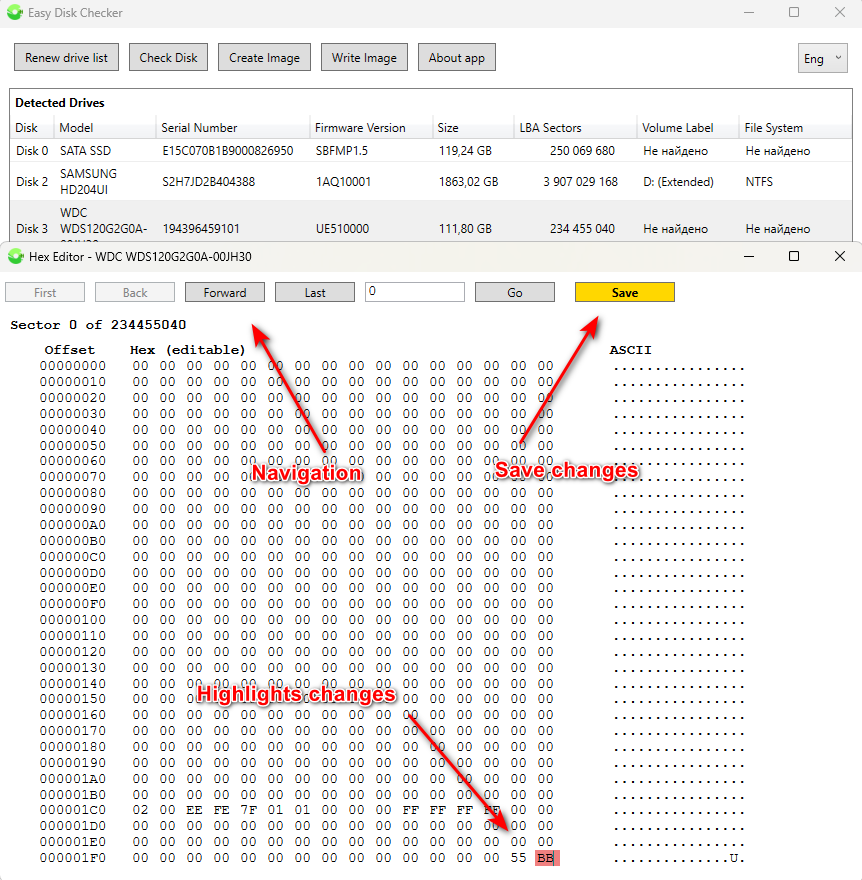
WARNING: Incorrect modification of data in the HEX editor (e.g., in the partition table or MBR) can result in the loss of logical partitions and an unbootable OS.
Disk Partition Recovery
If selecting a disk automatically determines that there is no layout due to a logical failure or accidental/intentional deletion of partitions, the user is offered an option to scan and recover the volumes.
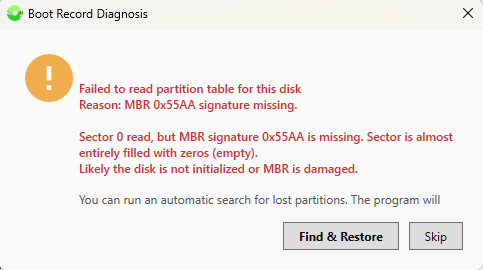
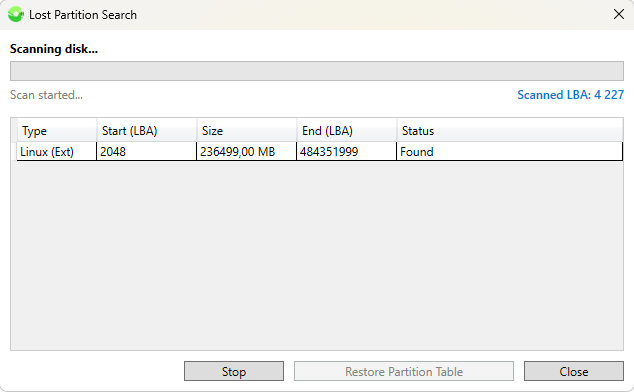
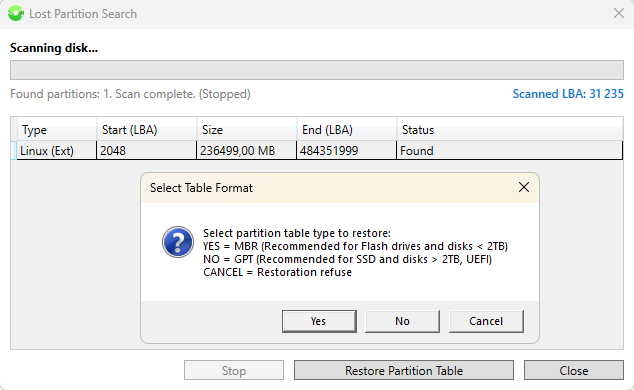
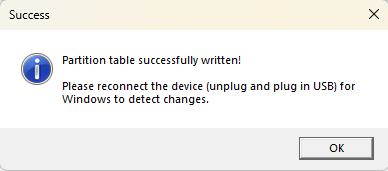
Based on the found partitions, you can generate an MBR or GPT layout and get standard access to the files within the recovered volumes. This function is not destructive to your data; even in the event of user error, only the first few sectors of the disk will be overwritten.
Copying Files from a Disk Without Mounting It to the System
Upon successful layout analysis, recognized partitions appear in the "Logical structure of selected disk" window, along with details about their parameters and file system. Right-clicking brings up a context menu where you can open the built-in file explorer. This allows you to view the contents of the selected partition and copy specific files and folders to a designated location on the "host" system.
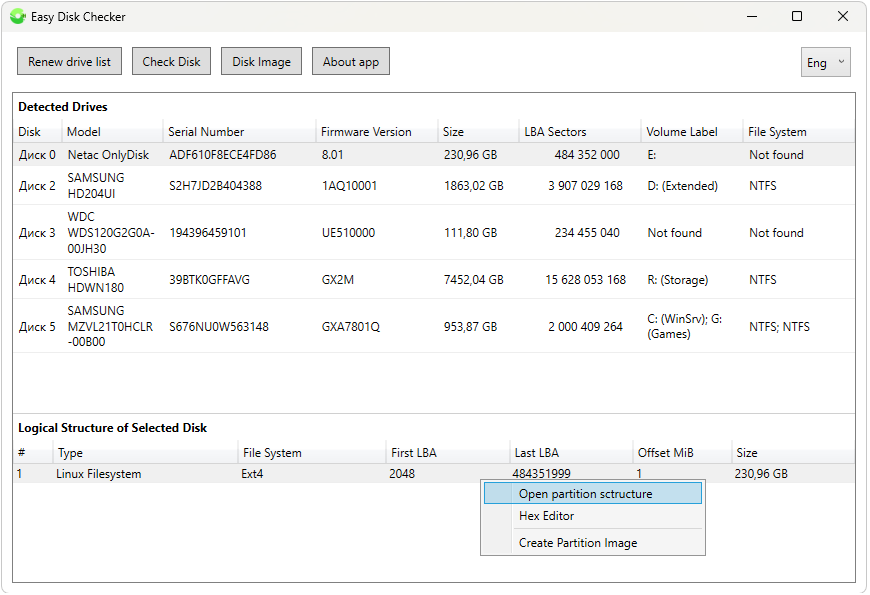
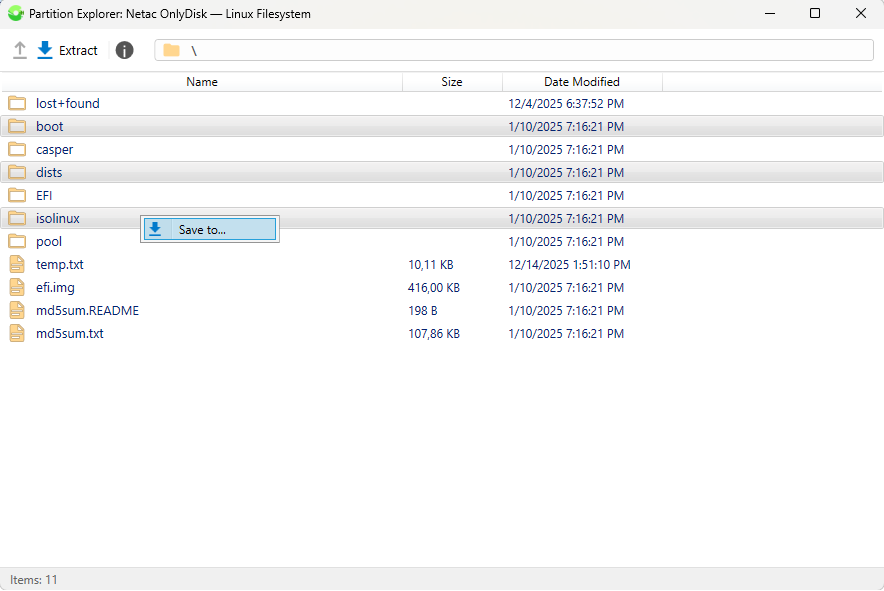
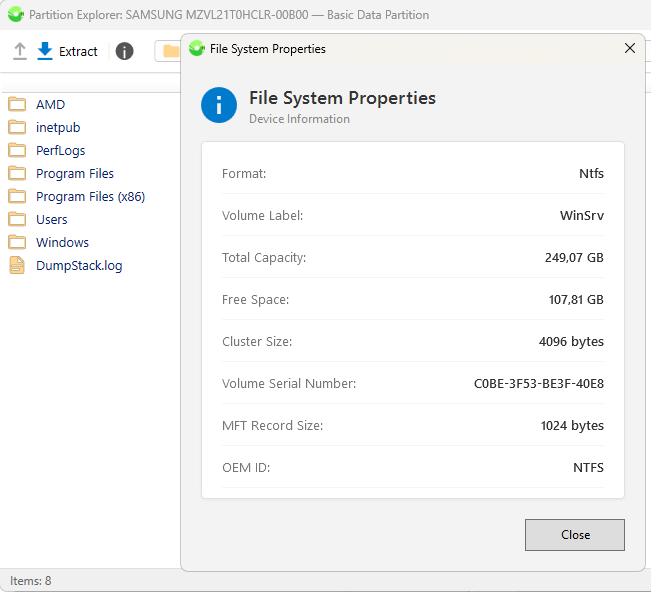
Thus, using Easy Disk Checker, you can view and copy data while bypassing the OS for the following file systems: FAT16/32, exFAT, NTFS, Ext2/3/4, and HFS+. Additionally, clicking the exclamation mark icon lets you view advanced details about the opened volume.
After the physical disk list is populated and a disk is selected, the following buttons become active:
Disk Checking
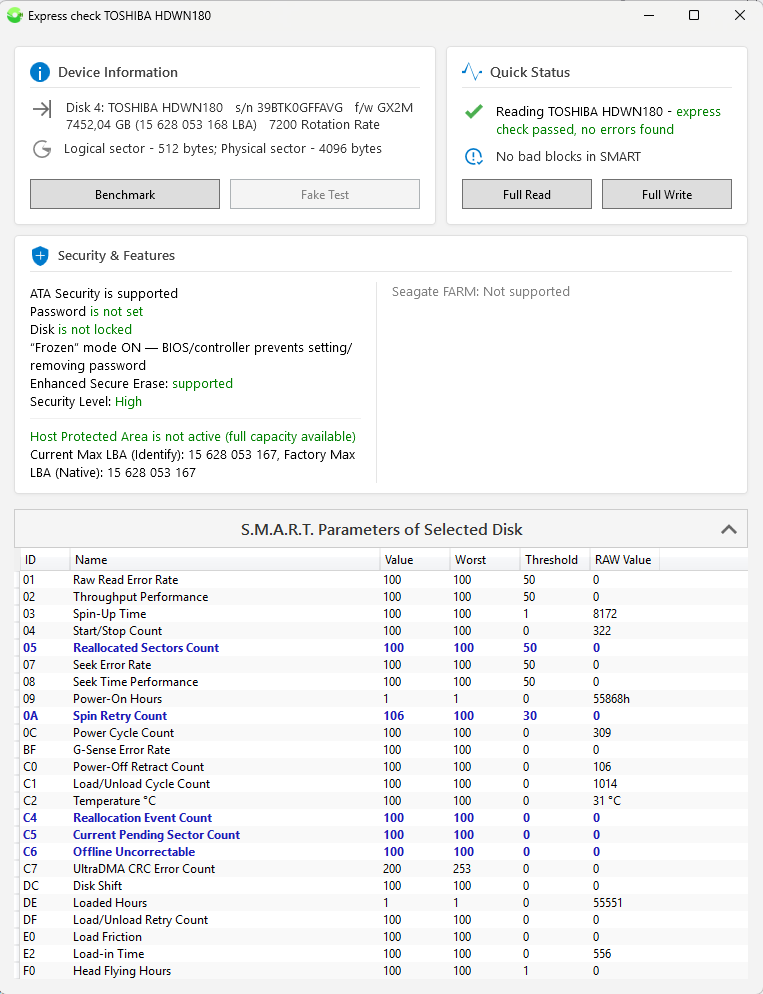
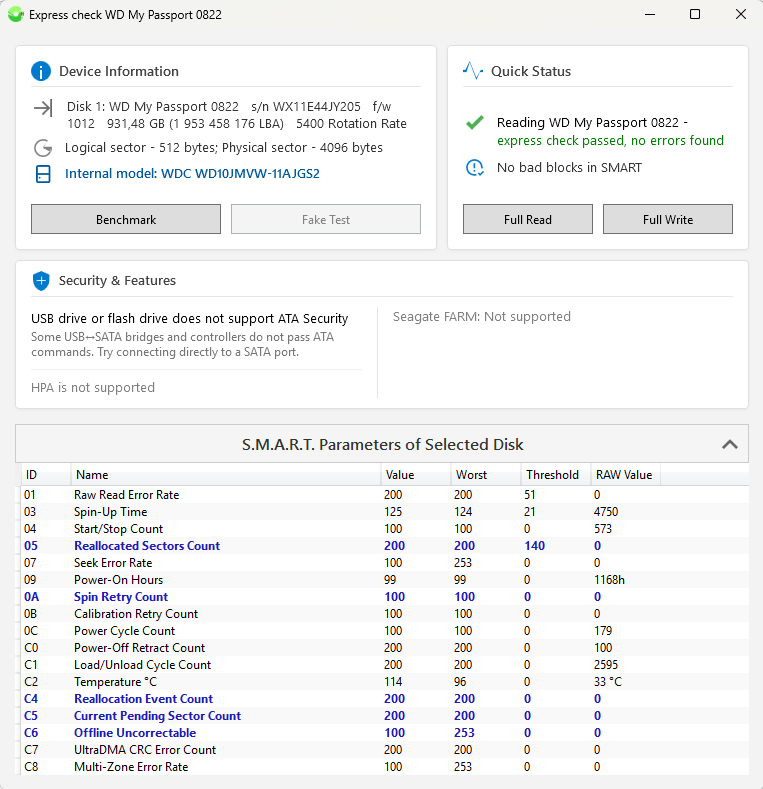
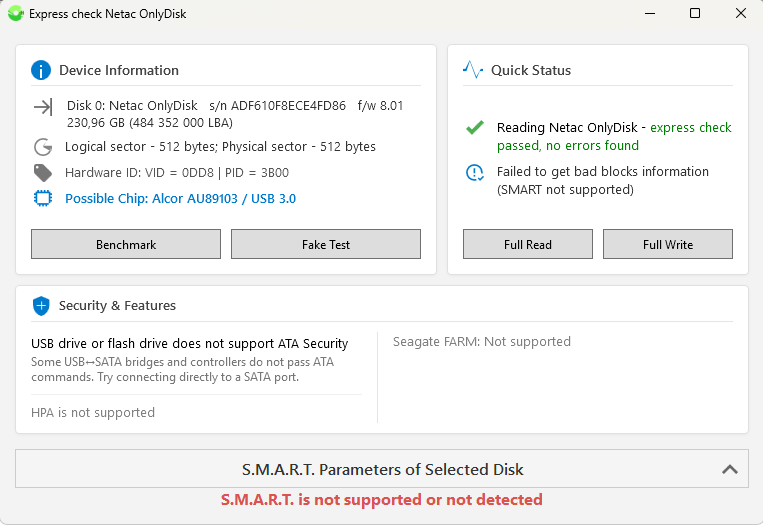
Selecting the desired drive for testing in the "Detected Disks" window and clicking "Check Disk" opens a summary window divided into functional blocks:
- Device Information — model, serial number, firmware version, capacity, and if supported, the RPM (revolutions per minute) value, the internal model of an external disk, VID/PID of flash drives, and the suspected microcontroller model (which helps in finding service utilities to "flash" the drive), along with the buttons:
"Benchmark"
"Fake Test" (available only for flash drives and memory cards). - Current Status — an express read check of the disk in LBA areas at the beginning, middle, and end of the disk, along with the buttons:
"Full Read"
"Full Write" - Security and Features — if available, displays information about ATA passwords, HPA (Host Protected Area), and Seagate FARM (available only on modern Seagate drives).
- S.M.A.R.T. Self-Test Table Output — collapsed by default, not supported on USB Flash drives and memory cards.



Working with Images
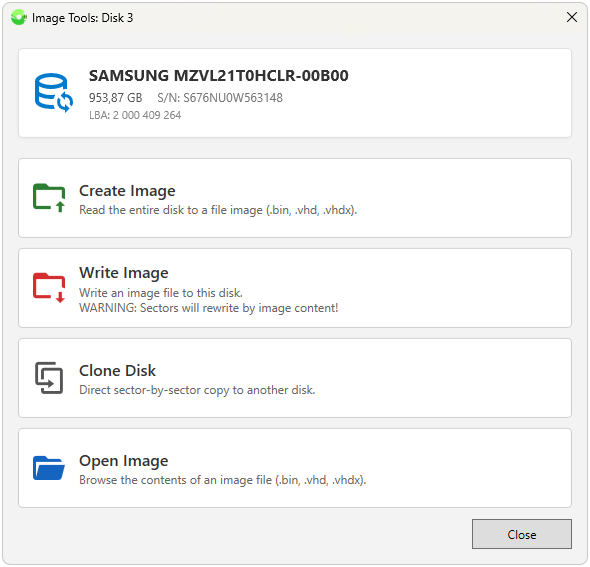
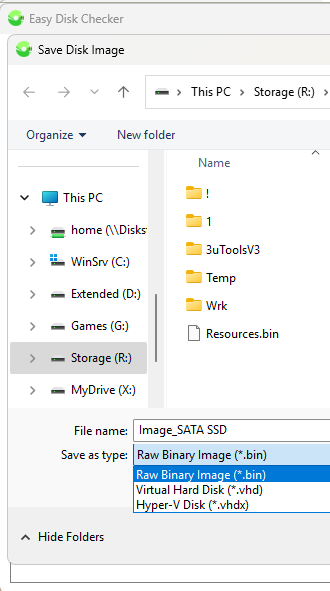
This process creates a complete sector-by-sector image of the selected disk without compression or modification (*.bin), or a dynamic compressed image that can be mounted natively in Windows (*.vhd, *.vhdx). Image files created this way can be mounted in Windows as virtual disks using the standard right-click context menu in Windows File Explorer. The file size of an image from a disk with few sectors occupied by data (filled with zeros) can be significantly smaller than the total capacity. All you need to do is select the save path and filename; the extension will be assigned automatically.
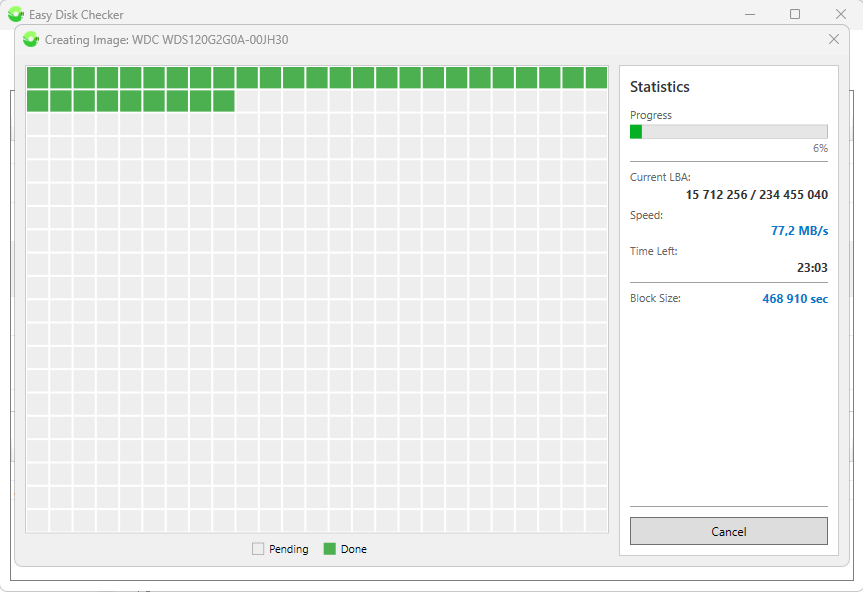
Pressing the "Cancel" button interrupts the process, but the partially read image file is not deleted. The Windows "sleep mode" is blocked during reading. Additionally, there is an option to create images in VHD/VHDX formats with support for compression and dynamic expansion.


Writing an Image
Use with caution! Writing an image to the selected disk is functionally no different from reading. The only difference is that two warning windows are displayed before starting, because mistakenly writing an image to the wrong target disk will result in the irreversible overwriting of the written sectors. It supports both writing binary images and "deploying" VHD/VHDX files.
Disk Cloning
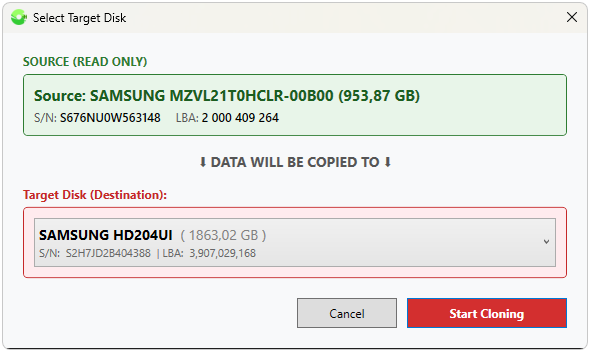
Performs sector-by-sector disk-to-disk transfer, which can be used as a backup method for system drives, work disks, and flash drives.
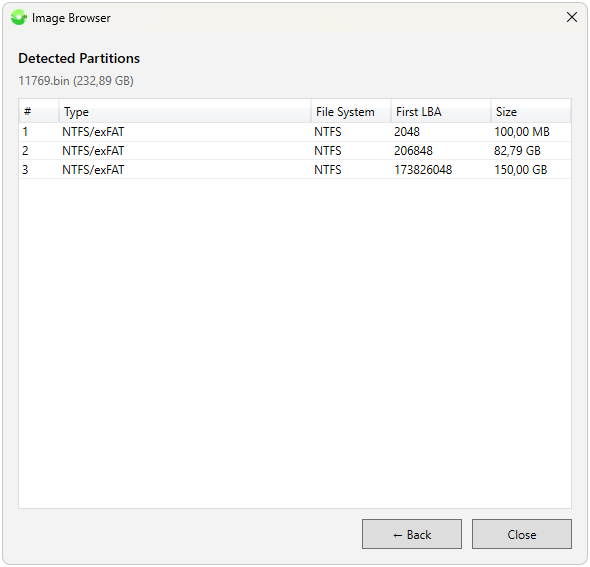
Opening an Image File
Allows you to open any unmodified binary image (bin, img, etc.) or VHD/VHDX image, automatically detecting its partition structure. You can then open the partition structure via the context menu or by double-clicking it in the built-in "explorer", allowing you to select multiple items for extraction.
Benchmark
Runs four reading iterations across different areas of the selected disk, outputting information about the calculated average speed in Mbps.

Fake Test
This function becomes active if a USB flash drive or memory card is selected.

This is used for the so-called "Aliexpress flash drives" or drives from OZON. The algorithm identifies flash drives with artificially "inflated" capacities via software. If the actual capacity matches the advertised one, it displays an appropriate message:

Full Read
The utility performs a linear read to search for bad blocks and bad sectors, sequentially reading every sector of the disk from start to finish. For better visualization, sectors are grouped into dynamic blocks.
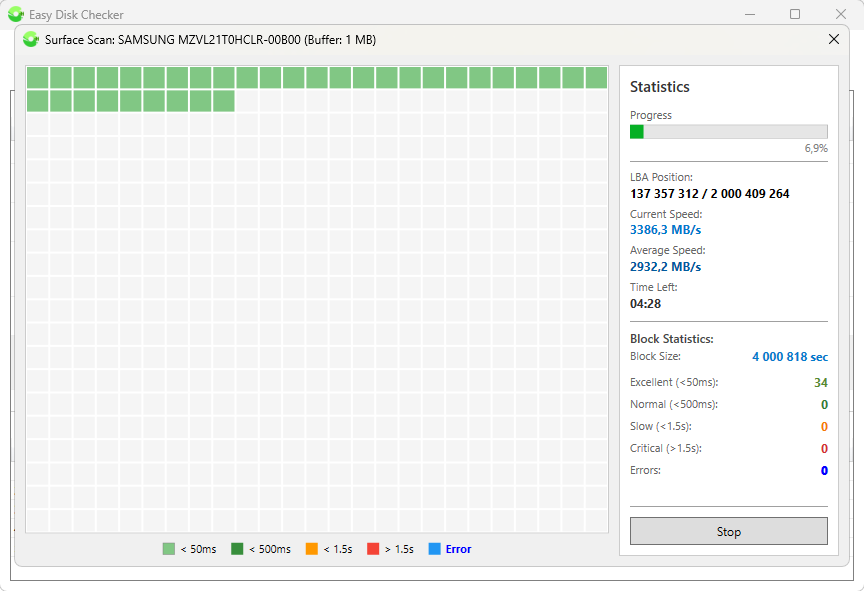
During the disk test, the left part of the window populates a block map according to the legend, while the right side shows details about the automatically selected block size, current sector address, instantaneous and average read speeds, and the estimated time remaining.
Full Write
Identical to reading, but before the test begins, a prompt warns about the irreversible loss of the contents in the overwritten sectors.
WARNING: DESTRUCTIVE FUNCTION! All sectors on the selected disk will be irreversibly overwritten with the 00h pattern.
A brief execution of the write test can resolve issues where partitions cannot be deleted using standard Windows tools.
Removing Microsoft Storage Space Device (Microsoft Storage Pool)
Following requests from colleagues and users, the utility now includes the ability to remove the "Microsoft Storage Space Device" (also known as Microsoft Storage Pool or Msft Space Device) flag from HDDs or SSDs. This pool is created by Windows in the respective wizard, and it cannot simply be removed from Disk Management.


The key change to the logical structure of the drive occurs in the second sector (at offset 0x400), where the pool layout is written.

Taking a pool of two physical disks as an example, the utility will display it as two physical disks and one logical virtual overlay (the MsftStorage Space). All you need to do to delete it is identify the array disks by matching lines in the MBR analysis window, start a full write test on each one, and abort it right after it begins.


This is possibly the Only advanced and the Best Disk Diagnostic utility in the world. Appreciate your technical expertise. Thanks for making it available free.
What about Victoria?